Saturday, May 11, 2013

Cool New ReferenceUSA Tool by Norma S.


My friend Kay is taking her 14 year old niece to Boston after school is out both for fun and to learn more about the history of the area. One of the things that her niece likes to do is go clothes shopping at any thrift outlets she can find. So my friend asked me if I could get together a list of thrift stores for them. Since she wasn’t sure yet where they were going to stay I got on ReferenceUSA and set about trying to find her a list with addresses and phone numbers.
 

Kay decided it would be a good idea for her to bring her niece to the library so that she could learn how to find things like this for herself. I showed her how to get to the databases from the SCDL home page and how they were organized. We then pulled up ReferenceUSA and started to hunt for thrift stores in Boston.
Because this is so specific we decided that a custom search was called for rather then a quick search so we selected Keyword/SIC/NAICS and the city knowing that the last one would also ask for the state.
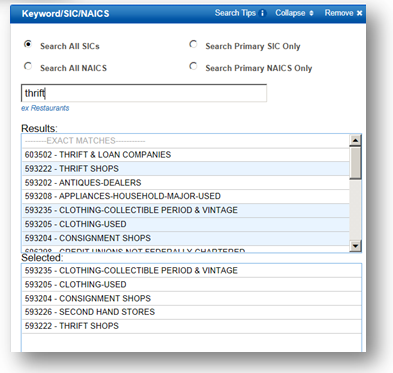


When we started looking for Thrift stores ReferenceUSA pulled up quite a large list of suggestions under the business type. Since both Kay and Kim like vintage clothing we also included that in our search.
Surprisingly for a city the size of Boston there are only 16 stores of this type that fit into our selected parameters.


I printed out the list for them and because ReferenceUSA has added a couple of new features and one of them is the Heat Map
 
This shows where these stores are located in and around the city so I printed that out for them as well.
 
The map is interactive so you can zoom in and out on the area that you’re interested in.


Monday, April 29, 2013

Registering for an SCDL Class or Program using the Program Search Option

Want to register for an SCDL class or program? Use the following instructions to register. A library card is required for classes or programs that require registration. Need an SCDL card? Contact any SCDL location for assistance.

Locate the Stark County District Library website. (www.starklibrary.org)

1.  Locate the Calendar option on the navigation bar.

2.  Click or tap the Program Search option to search for a program.
3.  Or click or tap the Today's Events option see a list of events happening for that day.

Program Search Option:
1.  Click or tap the Program Search option to search for a program.
2.  Type a keyword in the text box or use the drop down arrow for additional search options.
3.  Limit your program search by Location or Program Type. (Additional options can be found using the drop down arrow or the scroll bar.)
4.  Click or tap Go when ready.
5.  A list of classes will appear. 

6.  To register click or tap on the Register option.
7.  If not already, log in using your Library Card Number and PIN.  (Don't know your library PIN?  Contact any SCDL location to speak to a librarian.)


8.  When ready click or tap the Go option to finish your registration.
NOTE:  You will not see an option to register if registration is not required for a program.
NOTE:  If you have an email address registered with SCDL you will receive confirmation and reminder emails.


Thursday, April 25, 2013

Registering for an SCDL Class or Program using Encore

Registering for an SCDL Class or Program using SCDL catalog Encore

Want to register for an SCDL class or program?  Use the following instructions to register.  A library card is required for classes or programs that require registration.  Need an SCDL card?  Contact any SCDL location for assistance.

1.  Locate the Stark County District Library website. (www.starklibrary.org)
2.  Enter your library card number and password to log in.  Click or tap Go.

3.  Click or tap on the New Search option at the top of the page.


4.  Type your search term in the Text Box.  Click or tap the Submit button.

 
5.  Locate the class/program you want to attend.  Click or tap on the Register option.

6.  Select the Number of persons attending and then enter a name for each individual attending. Click or tap Go.
*Limit of two attendees per library card.
 
7.  You will receive an email from the library confirming your registration as well as class or program registration reminders prior to the event. 
* You will need to have an email address on record with the library to receive emails.

If you need assistance registering for a class or program please contact any SCDL location.

Dee R.


Monday, April 22, 2013

Atomic Training

The Stark County District Library is proud to introduce the Atomic Training Database.  Atomic Training is a group of software specific online tutorials.  Thirty second to three minute tutorials include Apple, Windows, Google, Open Office and much more.  If you have already created an SCDL Zinio account, you are ready to go.  Use the above link, visit the SCDL Computer Training page, or the SCDL Database page to access the Atomic Training Database. An SCDL card is required to access the Atomic Training Database outside of the library.  The following information includes creating an account and using Atomic Training.

Creating an Account:

1.  Locate the SCDL Atomic Training Database page. (Internet connection required.)
2.  Click or tap on the Create Account button.
 
 
3.  Fill in all required fields and then click or tap Create Account.
 
4.  An email for account authentication will be sent to the email address you used in the Create Account process.  Access the email and follow the link to authenticate your Atomic Training account.
 
5. The link will take you to the Atomic Training page.  Log in using your email address and password used when creating your Atomic Training account.
 
Using Atomic Training: (Speakers or Headphones, Internet Connection, Flash or Quicktime required)
 
1. After logging in:
  a. Select a type of training from the list.
  b. Select a software edition from the list.


  c.  A list of video tutorials will appear in the preview pane.  Start from the beginning or intro of the group of tutorials or select the tutorial that best suits your needs.  Click or tap on the tutorial you would like to view.

 
  d.  When the video tutorial ends click or tap on the Next button for the next tutorial in the list or Tutorial Playlist to be taken back to the original list of software tutorials.
 

Now you can get started using Atomic Training.  Look for more helpful information about Atomic in up and coming blogs.

Dee R.