Thursday, May 10, 2012

Improve Your iPhone/iPad Performance


Have you noticed your iPhone or iPad being a bit sluggish lately?  You might be chewing up memory without even realizing it.  You see, on iPhones and iPads, even when you "quit" an app, it continues to run in the background.  This is wonderful for easy access, but if you have too many apps running at once it could slow down your device.  And if you have never properly shut down an app, it's possibly every single app you have is still running and using memory.  Luckily, closing your apps is a simple process.


1) Press your Home key twice quickly to bring up all your apps that are currently running.  This feature puts your apps in order of most recently used, so you can jump between them quickly.  It is also how you close apps that are running in the background.


2) Press and hold one of the app icons until they all start wiggling and red lines appear on each icon. It should only take a second or two.


3) Tap the red line on each icon until every icon disappears


You have now closed all your apps!  Press the Home key once to get back to your main screen.

Wednesday, May 2, 2012

Turning your iPod Touch into a Level

Hi Everyone,
I thought I would pass on this little tip about turning your mobile device into a working level (a device used for determining or adjusting something to a horizontal surface).  I know I have had this happen to me many times.  There I am holding a picture up to a wall trying to adjust it.  I know I need a level but it is all the way downstairs.  What I do have is my iPod or cell phone in a pocket or in the kitchen.  Why couldn't it be a level?  Well, it can.

Tim O's Studios Level App
Tim O's Studios Level
There are many free apps for your mobile device including apps that will turn your mobile device into a working level.  Go to the app store for your device, in the search box type "Level."  You may read about the app before downloading by tapping on the icon instead of the Install button.  When you find the one you would like to use, tap on the Install button.  To use the app, tap on the icon that is now on your device.  When the level appears on your screen, use it as you would any other level.  Just be careful, it is still an electronic device.

Thursday, April 26, 2012

Deleting Books from Your Kindle Home Screen

One of the many awesome things about checking out a library book for your Kindle is that it is "returned" automatically.  So not only is the book free, but you never have to worry about getting late fees.  However, all those "Your Loan Has Ended" notices can be very pesky on your home screen.  Luckily, they are pretty easy to get rid of.
For Kindles with a Keyboard:

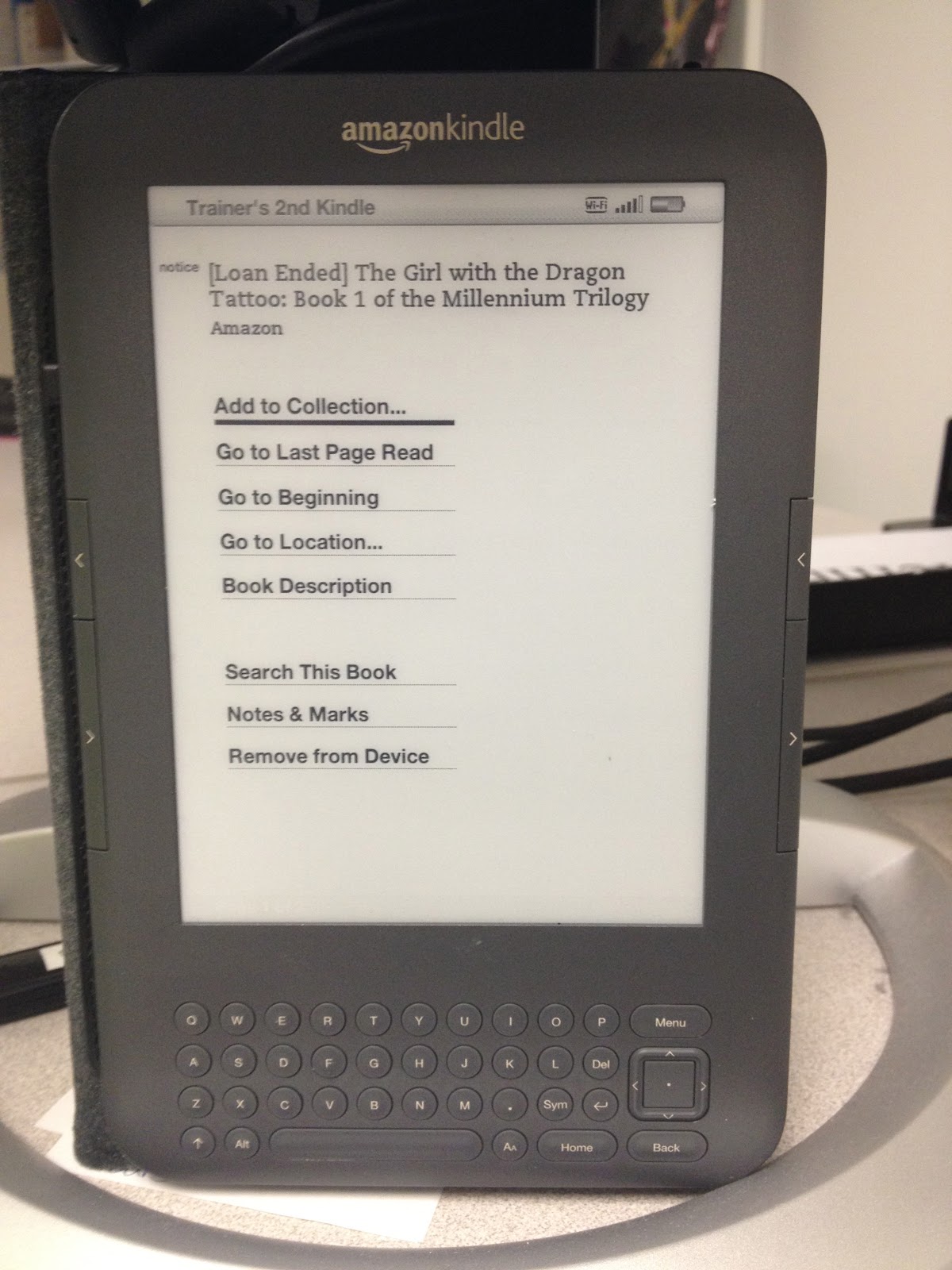
On your Home screen, select the title you wish to delete, as The Girl with the Dragon Tattoo is selected here.  Using the square arrow key in your keyboard, click the right arrow once.

You will be taken to this screen.  Using the same square button, scroll down to "Remove from Device" at the very bottom and select it.  The title will now be deleted from your device, as easy as that!

For Kindle Touch:

 
On your home screen, touch the title you wish to delete like you would to open it. However, instead of just touching it, you need to touch and hold it for 2 seconds.  Don't lift your finger!


You will see this screen pop up.  You can lift your finger, and this time touch " Delete this Notice" at the bottom of the new box.


Finally, you will see another box up asking you to confirm that you want to delete the notice.  If you are sure, press delete.  Your expired title will disappear!

If you don't know how to get free public library books for your Kindle or Kindle apps, check out this video tutorial created by Stark County librarians:


Tuesday, April 17, 2012

iPad: Changing your email signature

Have you changed your signature on the email account that you use on your iPad?  Or are you sending items with a signature "sent from your iPad"? 
It is easy to change the signature to something a bit more personal or professional. 
1.  From the Home Screen, locate Settings
2.  Open the iPad settings by gently double tapping on Settings
3.  Tap on the Mail, Contacts, Calendar option from the Settings options list
4.  Tap on the Signatures options found at the bottom of the Mail, Contacts, Calendar options

5.  A keyboard will appear, type the signature that you would like others to see when you send an email.
Now you may press the Home button to go back to your iPad's Home Screen.