Showing posts with label Word. Show all posts

Thursday, April 9, 2009

Word: Embed an Excel Worksheet

1. Place the insertion point where you want the Excel worksheet to be.
2. Select the Insert Tab to reveal the Insert Ribbon and then click on the Object button found in the Text Group.
3. Select the type of worksheet you want embedded in your document and then click OK.


An Excel worksheet will appear. Note the change in the ribbon. It is now the Excel Ribbons.
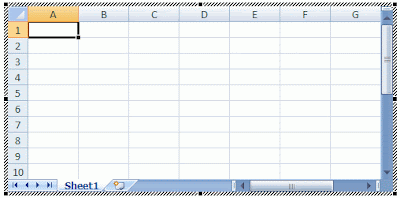


4. Click outside of the Excel worksheet to covert back to the Word Ribbons.
5. Click on the worksheet to reopen the Excel options.

Monday, January 19, 2009

Microsoft Tip of the Week: Contextual Tabs

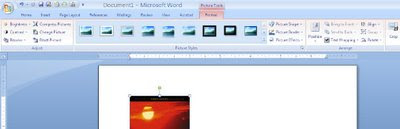
The Contextual Tab appears when you are working with specific objects such as pictures, charts, or objects in Microsoft 2007 Word, PowerPoint, and Excel.

In Word, you will find a Contextual Tab when working with a picture. Notice the Formatting Ribbon also appears when working with a picture. These additional tabs and ribbons are included to help with formatting images, pictures, and objects that you have inserted into a document. To access the Contextual Tab, click on the picture, image, or object.


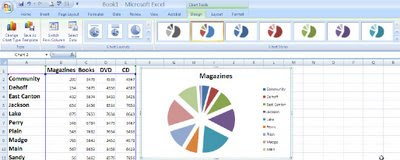
In Excel, you will find a Contextual Tab when working with a chart. Notice the Design Ribbon also appears when working with a chart. These additional tabs and ribbons are included to help with formatting charts, pictures, and images. To access the Contextual Tab, click on the chart, pictures, or image.

Monday, January 5, 2009

Microsoft Tip of the Week Word: Adding a Text Box


Microsoft Office 2007: Tip of the Week
The Insert Ribbon: Adding a Text Box
The Insert Ribbon Groups include Pages, Tables, Illustrations, Links, Headers & Footers, Text, and Symbols.
One of the upgrades to 2007 includes additional options for the Text Box.

There are total of 36 styles to select from. You can change the size, shape, and color of each box using the formatting Ribbon that appears after you insert the text box.


Give it a try:
Open your word document
Click on the Insert Ribbon
Click on Text Box in the Text group
Select Mod Quote
Change the color to Red using the Text Box Styles Group then Shape Fill or the shortcut colors option
Change the shape to a happy smile face.

Monday, December 29, 2008

Microsoft Tip of the Week: Make a Cover Page for your documents:

Click on the Insert Ribbon, and then click on the Cover Page button. You will get Cover Page options to select. Click on the cover page you would like to appear, and then fill in the necessary information.