Monday, July 27, 2009

Excel: Create a Subtotal

Creating a subtotal in Excel:
Click on the range of cells that you want to subtotal. Then click on the Data tab to reveal the Data Ribbon options. You will find the Subtotal button in the Outline Group.

A pop up box will appear. Under At Each Change In, select the correct value option that applies to your worksheet. Select the funtion you need for your subtotals under the Use Funtion menu. Then select the column you want the subtotals caculated.
Then Click on OK.

To remove a subtotal. Click on any cell in the subtotaled column. Click on the Data tab and then click on the subtotal button in the Outline group. Finally, click on Remove all.

Tuesday, June 16, 2009

Excel: Additing Check Boxes to an Excel Cell

To add a check box or radio button to an Excel Spreadsheet, you must turn on the Developer's Tab and Ribbon. Click on the Office Button, select Excel Options, select Popular, select Show Developer tab in the Ribbon. This will give you access to the Developer Ribbon.
Once you have opened the Developer Ribbon, click on Insert, select the check box or radio button from the options.
To activate the box and button, save the spreadsheet as a Macro Enabled Spreadsheet. Click on the Office Button, select Save As, select Excel Macro Enabled.
Once saved the check boxes and radio buttons will be active.

Tuesday, June 2, 2009

Excel: Custom Lists

Click Office button > Excel Options > Popular tab > Edit Custom List
Type the new list in the List entries window > OK
To import a custom Auto Fill list from your spreadsheet
Highlight your list >Click the Office button > Excel Options > Popular tab > Edit Custom List
The range of cells you previously highlighted should be present in the Import list
Click the Import button and the new Auto Fill list appears in the Custom Lists window

Wednesday, May 27, 2009

Excel: Custom Sorting

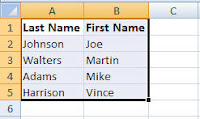
1. Create your list in Excel. If possible include a header row for easy identification while sorting.
2. Highlight the information you need to sort.
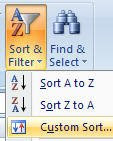
3. Click on the Sort & Filter button found on the Home Ribbon.
4. Select Custom Sorting
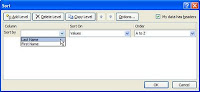
5. The Sort pop-up box will appear. Select the column you need to sort information by: Last Name, Address, etc… If your column headers do not appear as options for sorting in the Sort by option, click on the box next to the My data has headers.
6. If you need to sort by more than one criterion, click on Add a Level and repeat above instructions.
7. Click on OK.
Additional sorting options include: Sort On which includes Cell color, Font color and Icon; Order which includes: A To Z; Z to A; and Custom List.