Have you changed your signature on the email account that you use on your iPad? Or are you sending items with a signature "sent from your iPad"?
It is easy to change the signature to something a bit more personal or professional.
1. From the Home Screen, locate Settings
2. Open the iPad settings by gently double tapping on Settings
3. Tap on the Mail, Contacts, Calendar option from the Settings options list
4. Tap on the Signatures options found at the bottom of the Mail, Contacts, Calendar options
5. A keyboard will appear, type the signature that you would like others to see when you send an email.
Now you may press the Home button to go back to your iPad's Home Screen.
Tuesday, April 17, 2012

Thursday, April 5, 2012
Using LinkedIn and Twitter in Your Job Search
It is often said that when it comes to finding a job, it's not what you know, but who you know. With the explosion of social networking in the past few years, the pool of people who know you, and what they know about you, is expanding everyday. If you are not already out there on the Internet networking for a job, you should be. Not only does it help you find jobs, but getting your name out on networking sites and blogs will help you meet people and is an opportunity to show off what you know. Here are a two helpful networking websites and tips for using them:
LinkedIn
LinkedIn is a social networking site that allows you to connect with people you know on a professional level. In the past year LinkedIn's company recruiting feature has seen a huge expansion in usage. LinkedIn's recruiting revenues are now greater than Taleo and could reach the size of Monster.com within a year (forbes.com). You can upload job skills, work experience, education and a resume. From the information that you upload, the more than 9,000 corporations on LinkedIn can recruit you. Some tips:
Twitter
Twitter is a great forum to search for jobs, network with people in your field and stay informed. Some tips for using Twitter as an engine for job searching:
Good luck!
- The more compete your profile, the more likely it is that an employer will find you. This means you should include education, experience, skills, current job title, career goal, a profile picture, and get a few recommendations if possible.
- LinkedIn is NOT Facebook. Everything you put on LinkedIn should be as professional as possible. This means no check your spelling and don't use slang,
- Make sure you add an e-mail address and a blog or Twitter is you have one and they are work-friendly. This will give a chance to show what you know.
- Make sure your profile and usernames are professional. This should really go without saying
- Don't misrepresent yourself.
- Use hashtags (#) so people that are interested in your field can find you.
- Follow online job boards for constant updates on new positions and general job searching tips. Try:
- Indeed (@indeed)
- Simply Hired (@simplyhired)
- Upload a tasteful profile picture so your profile looks professional and complete. Customize your profile design to show that have savvy with navigating websites.
Good luck!
Monday, March 19, 2012
Project Gutenberg
Project Gutenberg (www.gutenberg.org) is a website dedicated to making public domain writings (generally anything published before 1923) freely available as ebooks. Founded in 1971, it is the oldest digital library, as well as the largest, with over 38,000 items. Books are available in various open formats, including EPUB for Nook and other ereaders, as well as MOBI for Kindle. To help ensure accuracy, Project Gutenberg ebooks go through a lengthy proofreading regimen provided by volunteers at Distributed Proofreaders. Downloading these books to an ereader is a simple process of just a few steps.
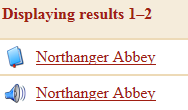 2. Click on the title and format to be downloaded.
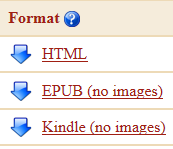 3. Click on the desired format to download it to your computer. Use EPUB (no images) for Nooks and Kindle (no images) for Kindles.


 1. Go to the Project Gutenberg home page and search for a book by author or title.
 2. Click on the title and format to be downloaded.
 3. Click on the desired format to download it to your computer. Use EPUB (no images) for Nooks and Kindle (no images) for Kindles.
4. In In ternet Explorer, there will be a popup box that gives the option to Save as so that the book will be easier to find later when transferring to the ereader.

5. Connect the ereader to the computer with the USB cord. Then click on the Start menu and go to Computer. The ereader should show up as a device. Drag and drop the book to the ereader. If you're using a Nook, you're done. There's one more step for Kindle users.

6. Double click to open the Kindle. Drag and drop the book into the documents folder.
Always remember to safely eject your ereader from the computer before you start reading!
Wednesday, March 7, 2012
Downloading/Installing the Kindle app to your mobile device
Downloading/Installing the Kindle app to your mobile device requires a mobile device with an active app store and wireless connection.
1. Locate the Kindle app in your device app store

2. It is a free app but will still require an active app store account to download
3. Follow the prompts for installing the app on your device
4. Once installation is complete, check your device apps for the Kindle icon
5. Now you may read a Kindle ebook on your mobile device using the Ohio eBook Project and an Amazon account.
Look for more information about Downloading Kindle eBooks in future posts.
Dee
Subscribe to:
Posts (Atom)